|
Accessing Eprentice
Using WS_FTP LE |
||
|
|
||
|
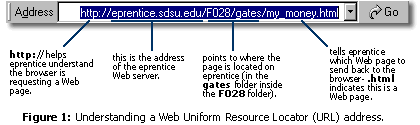
There are a variety of Windows ftp programs to choose from, but one of the best programs to use is called WS_FTP LE (limited edition) from Ipswitch. One reason is because it is free; the other is because it has many cool options and is pretty easy to use. If you really like the LE edition you might want to consider upgrading to the commercial version of WS_FTP Pro, one of the most common ftp clients used by Windows Internet professionals to transfer Web files between local computers and servers. VERY IMPORTANT: Remember, after you put your web page into your folder on eprentice you are officially on the Internet. The first part of the Web address (i.e. http://eprentice.sdsu.edu) never changes and is the same for everyone who has a folder on the server. However, the last part of the address depends on your section of EDTEC 470, your last name, and the name of the file you put into your eprentice folder. For example, if you were in section F028, your last name is Gates, and you uploaded a page called my_money.htm, then your web address would be: http://eprentice.sdsu.edu/F028/gates/my_money.htm |
||
| 1. | You can download WS_FTP LE from a participating
Web site such as c|net’s DOWNLOAD.com: http://download.com.com/3000-2160-1572132.html Or, try clicking here to save the program directly to your local computer’s desktop. Make sure you choose to Save the file (do not choose Open). |
|
| 2. | After you download and install the program, double-click the Shortcut to WS_FTP.exe icon on your desktop to launch WS_FTP LE. Or, you can open WS_FTP LE from Programs on your Start menu. |
|
| 3. |
After you open WS FTP LE, you will see a window displaying two panes. The left pane is called the Local System window and the right pane is called the Remote System window. Click the Connect button in the lower left part of the window to get the Session Properties box to pop up. |
|
| 4. |
When the Session
Properties dialog box pops up, type in the following: Profile
Name:
EDTEC 470 TIP: Make sure to check Save Pwd so you won't have to retype this information every time you open a new session— next time, just choose EDTEC 470 from the Profile Name drop down box. Click OK and you should see some action in the right (i.e. remote) window pane.
|

|
| 5. | Your class area (i.e. directory) on the eprentice server will open and display in the right pane. You now have an active connection (i.e. session) to the eprentice server. Look for your folder and double-click it to get into your personal directory. |
|
|
6. |
Then, use the little up arrow Scroll down to see your A drive if you saved your Web files on a floppy disk (shown below).
If you do store your Web files on the Desktop or in your My Documents folder, you will have to search for them in the left Local System window pane. If you are using Windows 95 or Windows 98, the local path(s) to these areas are: C:\Windows\Desktop
or If you are using Windows Me, Windows 2000 or Windows XP, the local path(s) are: C:\Documents
and Settings\User Name\Desktop or Where User
Name can vary from computer to computer. You will also
probably have more than one User
Name folder in the Documents
and Settings folder, so you might have to try a couple
of different folders before you find the right one. Hopefully it
|
|
| 7. |
Select the file or files (hold down the CTRL button to select multiple
files) you want to transfer to the eprentice Web server and then
click on the little right arrow button. This will transfer a copy of each of the file(s) from your computer into your personal directory on the eprentice Web server . Naturally, if you want to transfer a copy of a file from the remote
eprentice server to your computer, do the opposite and select the
left arrow. |
 |
|
TIP: Before you exit your session, you will want to click Options and Save Current Directories as Connection Directories. This will speed up the login process next time.
|
|
|
|
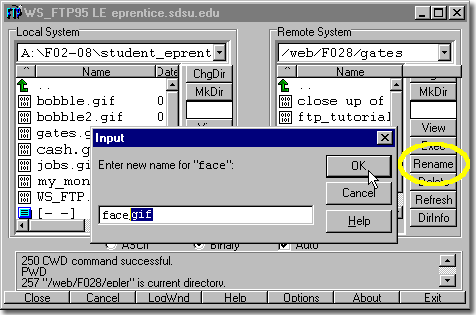
TIP: Sometimes your Web page or images will not work because a file is missing an extension— this has been known to happen on occasion if you published a Web file in the computer lab using Fetch. If this happened, select the trouble file(s) in the right pane and click the Rename button. This will open an Input dialog box where you can add the correct extension (e.g. .gif, .jpg, .html, etc.) to the end of the name by entering a new name. Click OK to complete the process. |
 |
|
|
|
||



 in the top corner of the left pane to locate the the Web files you
want to upload from your computer... notice the local path is shown
in the Local
System field right above the up arrow.
in the top corner of the left pane to locate the the Web files you
want to upload from your computer... notice the local path is shown
in the Local
System field right above the up arrow. 
 will
be obvious which one you should choose. Now you know why we recommend
saving your Web files on an external disk! Geez!
will
be obvious which one you should choose. Now you know why we recommend
saving your Web files on an external disk! Geez!


